

Full View
Similar items
Abxylute M4 Snap-On Mobile Retro Portable Magnetic MagSafe Gampad Phone Controller Snap For IOS/Android/Switch/PC Gift
NZ$65.33
NZ$72.60 -10% OFF

Suitable For PS4/PS4 Slim/Pro/PC Wireless Bluetooth Controller, 6-axis Sensing Vibration Gaming Controller
NZ$50.53
NZ$86.47 -41% OFF
Wireless Switch Controller For Switch/Switch Lite/Switch OLED, Bluetooth Gamepad With Turbo
NZ$28.51
NZ$42.24 -32% OFF
Machenike Gamepad Wireless Gaming Controller G5 Pro Elite Hall Trigger Joystick Mecha-Tactile Buttons For Switch PC
NZ$53.60
NZ$60.01 -10% OFF
R39MAX 4 Inch IPS HD Screen Retro Handheld Game Linux System 40000+ Games 256GB Card Mini Portable Gaming Console Gift
NZ$90.88
NZ$145.28 -37% OFF
STONEGO 1Pair Mobile Phone Game Trigger PUBG Aim Shooting L1 R1 ABS Key Button For Universal Gamepad Joystick
NZ$20.55
RG477V Handheld Console: 4.7inch Vertical Screen, Android 14, Supports Multiple Game Formats Including PS1 And PS2
NZ$855.23
NZ$1,096.94 -22% OFF
Wireless Joypad Joystick For 360 Controller Dual-Vibration Turbo Compatible Control Xbox 360/360 Slim And PC Window
NZ$31.18
5in1 Knuckle Strap+Grip Cover+Hand Strap+VR Lens Dust cover+Thumb Button Cap for Oculus Quest 2 VR Controller Accessories
NZ$17.57
NZ$26.45 -33% OFF
2.4G Wireless Game Controller Switch Compatible With PC360, Steam, TVbox, PS3
NZ$37.94
NZ$55.04 -31% OFF
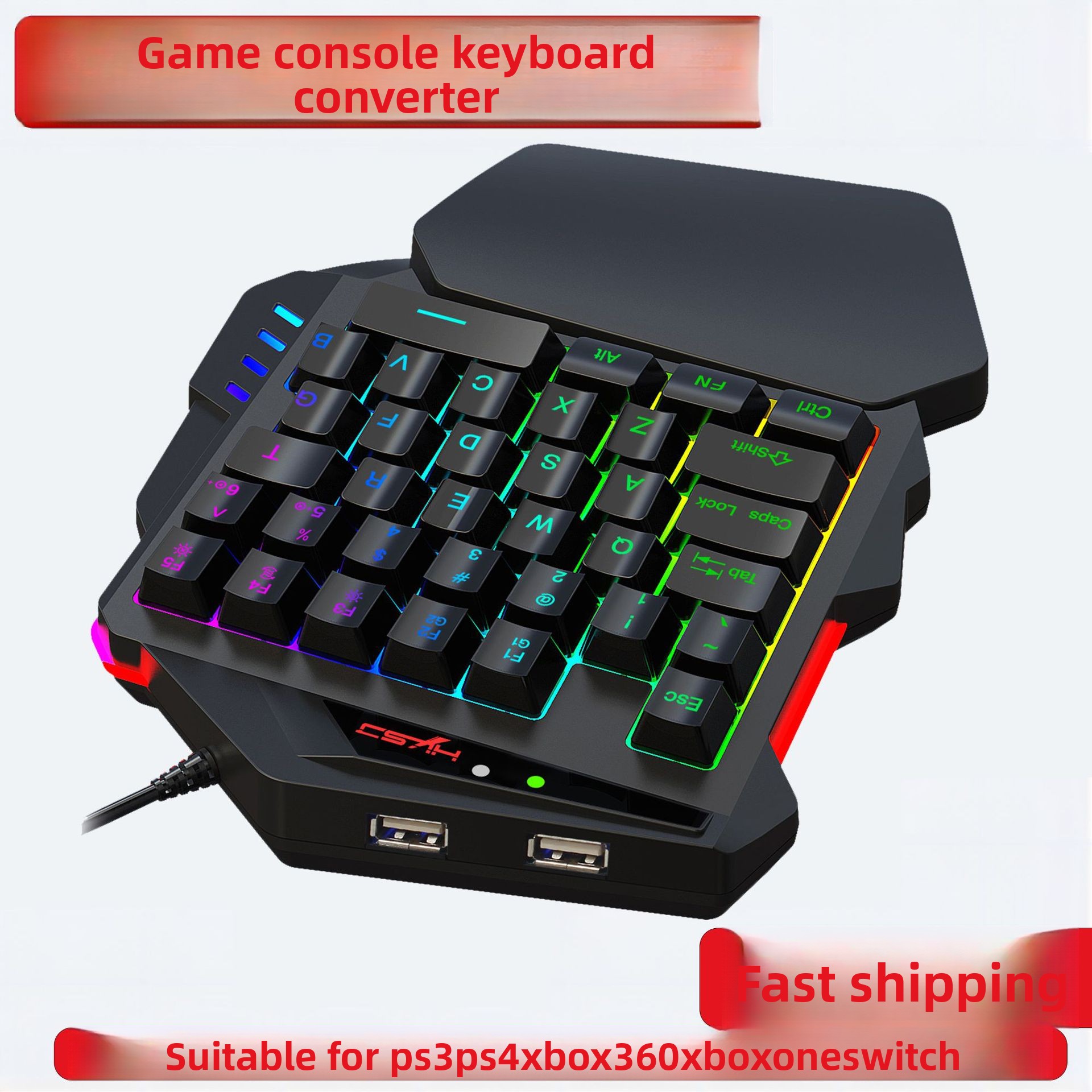
The New Keyboard Mouse Converter Supports Various Console Devices And Game Controllers Available In The Market
NZ$96.72NZ$146.68
Product color : P9 Illuminated Gaming Console
Quantity :

Report
Include copyright infringementFree Standard Shipping. See details
Estimated between Mon, Jul 27 and Sat, Aug 1
You can return the product within 30 days of receipt. See details
Shop with confidence

Money Back Guarantee
Get the item you ordered or your money back. Learn more
About this item
Sourced from CoreBox
Seller assumes all responsibility for this listing.Item number: 36202901
Item specifics
Origin
DE
Connection
Wired
Certification
CE, EAC, EPA
Compatible Brand
Sony, Microsoft, Sega
Date First Available
Yes
Multilingual
No
Item description from the seller
">
Added a new keyboard and mouse converter
Combo Set Image:
The V100+P6+mouse set comes in a three-piece packageIf you need English materials, please contact customer service, thank you
As shown in the image below: currently there are four styles
Then the P6 comes in a separate, independent color box
Add a V500 keyboard with a converter, as shown in the image below:
P6 Keyboard Mouse Converter Connection Instructions:
How to connect
Start the console and connect the adapter via a USB - TYPE C data cable. Plug the USB port into the console, plug the TYPE C port into the converter, then the LED will light up white
PlugintheoriginalwiredcontrollertoactivatetheyellowLEDlightInsertthekeyboardthentheredLEDlightwillturnon;insertthemousethenthegreenLEDlightwillturnonAfterallconnectionsheymade,theLEDwillcyclethroughyellow,cyan,purple,andpink
Specification:
Item name: Keyboard mouse converter
Brand/Model: HXSJ/P6
Color: Black
Mate
Ma
Material: ABS
Product interface: TYPE-C charging interface
Rated voltage / current: DC 5V / 100mA
Net weight: 100g
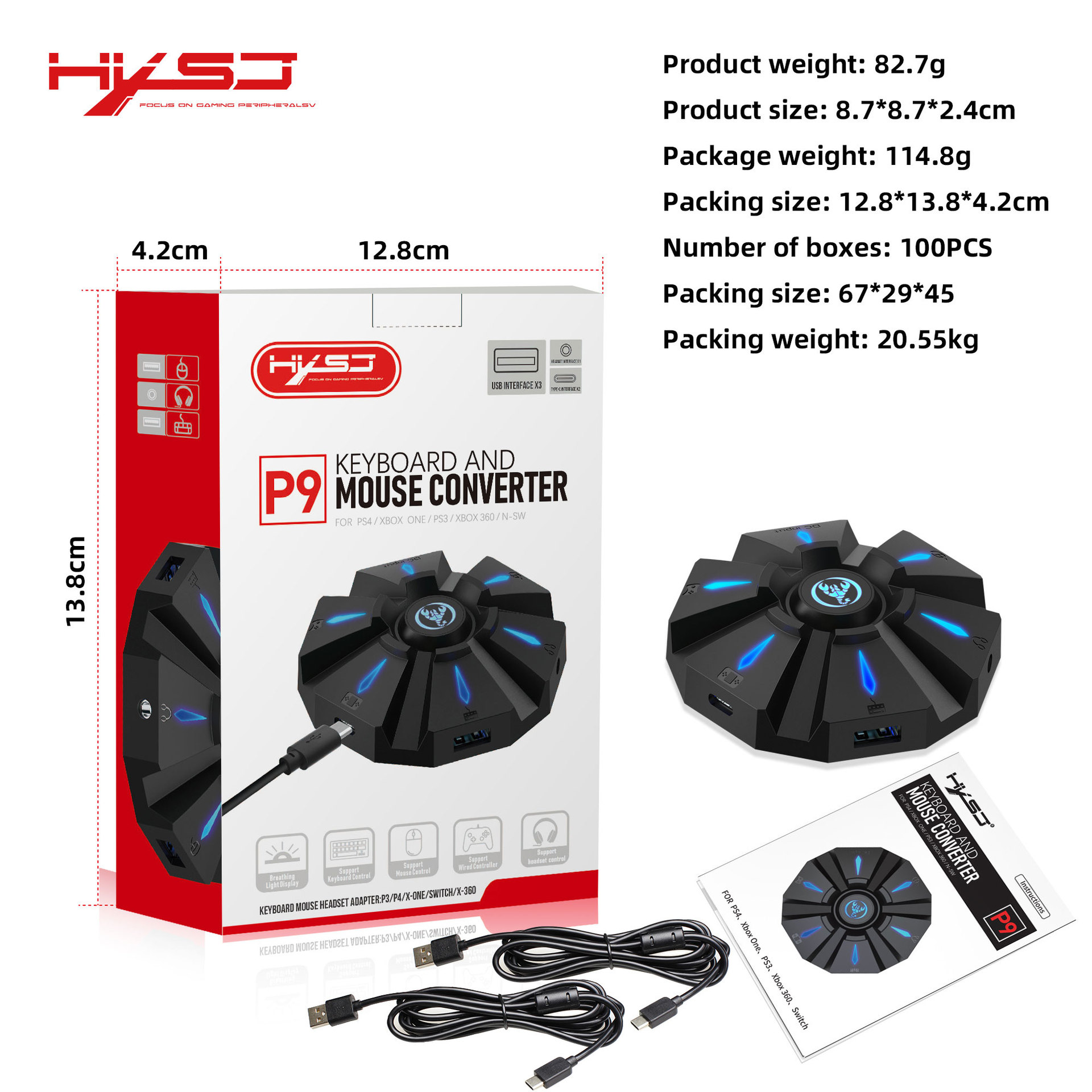
size: 11.4x2x9.4cm
Package weight: 190g
Packing size 14.6*11*2.6cm Packing hook 2.5CM
Suitable game consoles: PS4, Xbox One, PS3, Xbox 360, N-Switch
Packing list:
1 * Keyboard mouse converter
1 * User manual
2*TYPE-C ports
Charging cable 30cm and 95cm in length
1*Color box English packaging with hook
Precautions for using various game consoles:
1:N-SWITCH Keyboard and Mouse Connection Diagram
NOTE:
When using this product, the SWITCH console can function normally without connecting the original controllerOnly when the keys need to be modified will an original controller be needed to guide the process. The controller should be turned off before using this product
②An external device needs to be connected to a power source if the current is greater than 650mA
2:PS4 Keyboard And Mouse Connection Diagram
NOTE:
①When using this product on a PS4 console, please
Please note that
After plugging the cable to connect the mouse and keyboard converter, the orange light on the controller turns on, then you need to press the P button. But after connecting, it guides you successfullyDo not disconnect the controller while using the mouse and keyboard converter, otherwise it cannot be used
②An external device needs to be connected to a p
Power source if the current is greater than 650mA
3: PS3 Keyboard And Mouse Connection Diagram
NOTE:
①WhenusingthisproductonaPS3consolepleasenotethattheoriginalcontrollerneedstobeturnedto0Afterpluggingthecabletoconnectthemouseandkeyboardconverter,thecontrollerindicatorlightsup1-4,thenyouneedtopressthePbuttonButafterconnecting,itGuidesyousuccessfullyDo not disconnect the controller while using the mouse and keyboard converter, otherwise it cannot be used
②An external device needs to be connected to a power source if the current is greater than
at 650mA
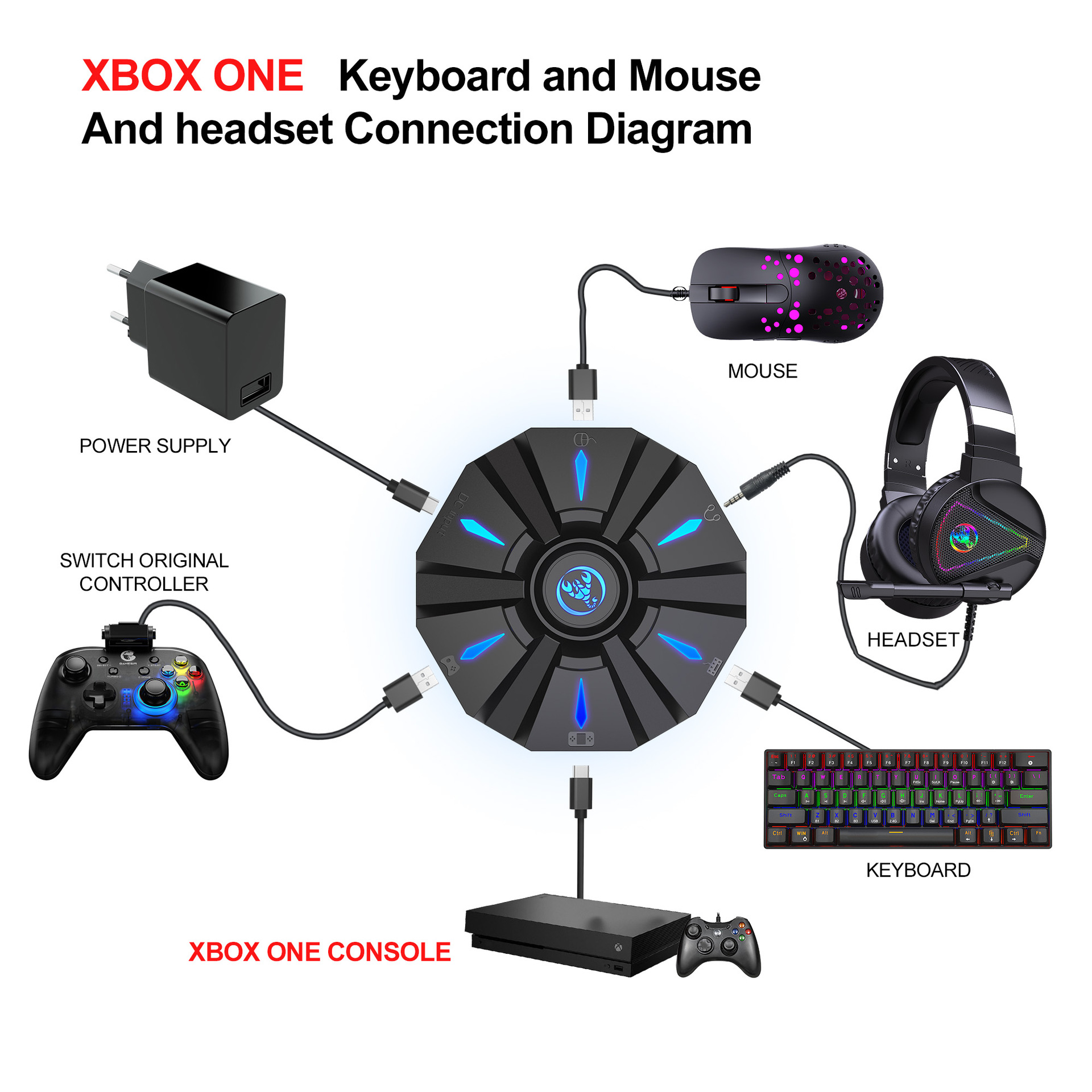
4: Xbox One Keyboard And Mouse Connection Diagram
NOTE:
When using this keyboard and mouse converter on the XBOX ONE console, PLEASE DO NOT disconnect the controller
Otherwise, it cannot be usedThe controller should be turned on before using this product
②An external device needs to be connected to a power source if the current is greater than 650mA
5: Xbox 360 Keyboard And Mouse Connection Diagram
NOTE:
and mouse converter on XBOX 360 console, PLEASE DO NOT disconnect the controller. Otherwise, it cannot be usedThe controller should be turned on before using this product
②An external device needs to be connected to a power source if the current is greater than 650mA
6:Set Keyboard And Mouse Functions
Press the keyboard's ESC + SPACE keys at the same time to enter the function mode for setting the keyboard and mouse button LED blue light
Press and hold the function button you want to set on the original controller, then press the button on the keyboard or mouse
You want to set and release the button on the original controller and the button on the keyboard or mouse
After the setting is completed, press ESC + SPACE on the keyboard to
Save the current setting and exit the setting mode
The function of the controller A key
7: Note on Keyboard and Mouse Setting Functions
During the setting process, if you do not hold down the original controller function key or joystick until the end, the original set function of the keyboard or mouse will be cleared
When setting the functions of the original joystick to left and right on the keyboard, the joystick must be pushed all the way to the end, and only the four directions of the joystick up, down,
3 left, and right can be set
For the mouse settings, when the original joystick direction is pushed to the end, the mouse slides in the corresponding direction, and the mouse only supports the corresponding function of the left and right joystick directions
8 direction settings
8:Mouse Speed Adjustment
The product supports mouse movement speed adjustment, the default is the third gear
2Shaft speed adjustment: ESC + C
APSLOCK + A/S/D/F/G
4、Mouse Y Axis Direction Switch
T
The Y-axis control of some games is opposite to the set value. The game operator can adjust the Y-axis direction of the mouse according to his needs by pressing ESC + R
9:Function Switching Instructions
Enter setting mode: ESC + SPACE
Enter setting mode: ESC + SPACE
3Default page 1: SC+ CTRL + Q
4Exit setting mode: ESC + SPACE
5Mouse speed switch: ESC + CAPSLOCK + A/S/D/F/G
6Y axis plus reverse: ESC+ R
7Page area selection: ESC+ TAB+Q /W / E/ R/ T
8Key value restore default: SC + CTRL + ALT long press for 3 seconds
10:Upgrade Instructions
You cannot upgrade at will without the correct upgrade program
On a Windows computer, open the upgrade software
The converter does not enter upgrade mode, firmware update is light gray
Connect the converter to the computer
transferred through the USB data cableAt this time, the white LED of the converter is onPlug in the keyboard and the red LED is onPress the keyboard keys SC + CTRL
Press + ALT + SPACE and hold it for 3 secondsAt this time, the firmware will update
It's black, click the button to update the firmware to update the converter firmware
The OK window pops up and displays "Update Success," indicating that the upgrade is completeClick OK
11:SETTING INSTRUCTIONS
The conversion box is connected to the console and not to the external devices, and is displayed as a white light
Inserttheoriginalcontrollertoguideanddisplaytheyellowlight,insertthefirstdevicetolightupred,theninsertanotherdevicetoturnonthegreenlight,successfullyturnontheyellowlight,andthenthecolorofthebreathinglightwillcyclebetweenyellow,green,purple,andpink
Each color changes 4 times to switch to another color. Press the set key function to light up blue
Videos
Videos for this product